


Mobile ID
The smart, secure virtual card under your control.
Turn your smartphone into a secure and intelligent card.
An on-premise solution designed for access control professionals who want to deploy mobile credentials quickly, without relying on an external cloud.
A complete mobile solution
XPR’s Mobile ID solution is built on two complementary components.
1XPR Virtual Card App
The application turns the smartphone into a digital virtual
card.
Features:
· secure storage of virtual cards
· mobile credential request
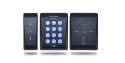
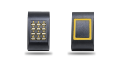
· easy use with BLE readers
· instant access to secured doors
The user receives a virtual card directly within the application upon downloading it.
2XPR VC Manager Software
The XPR VC Manager software enables administrators
to manage mobile credentials.
It allows:
· issuing virtual cards
· managing user requests
· assigning credentials
· managing Mobile ID credits
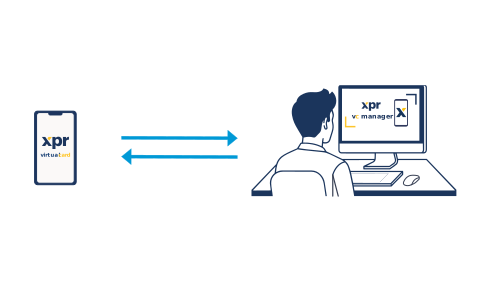
Virtual cards are generated through the software and
sent to users for installation in the XPR Virtual Card application.
An architecture designed for complete control
With XPR’s Mobile ID solution, mobile credential management is handled directly within the organization’s environment.
This approach provides full control over the system, the data, and the deployment.
XPR’s Mobile ID solution takes a different approach:
· local management of credentials
· customer-controlled data
· no dependency on an external platform
This architecture is particularly suited to environments such as industrial facilities, government sites, sensitive locations, and critical infrastructure.
Two modes to suit every project
XPR’s Mobile ID solution is built on two complementary components.
1Basic Access Mode
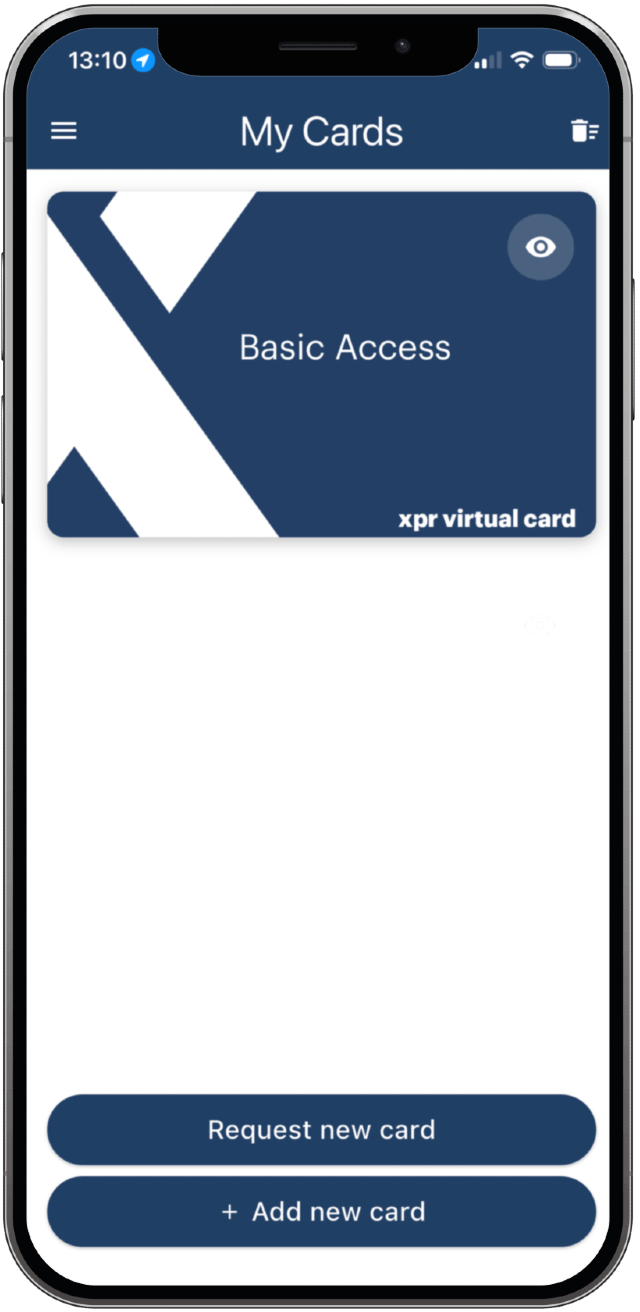
Instant mobile access
When the application is installed, a virtual card is automatically generated.
Features:
· instant credential
· no configuration required
· compatible with BLE readers in public mode
This mode is ideal for sites requiring a standard level of security.
The free virtual card for Basic Access Mode is automatically generated upon application installation.
2Professional Access Mode
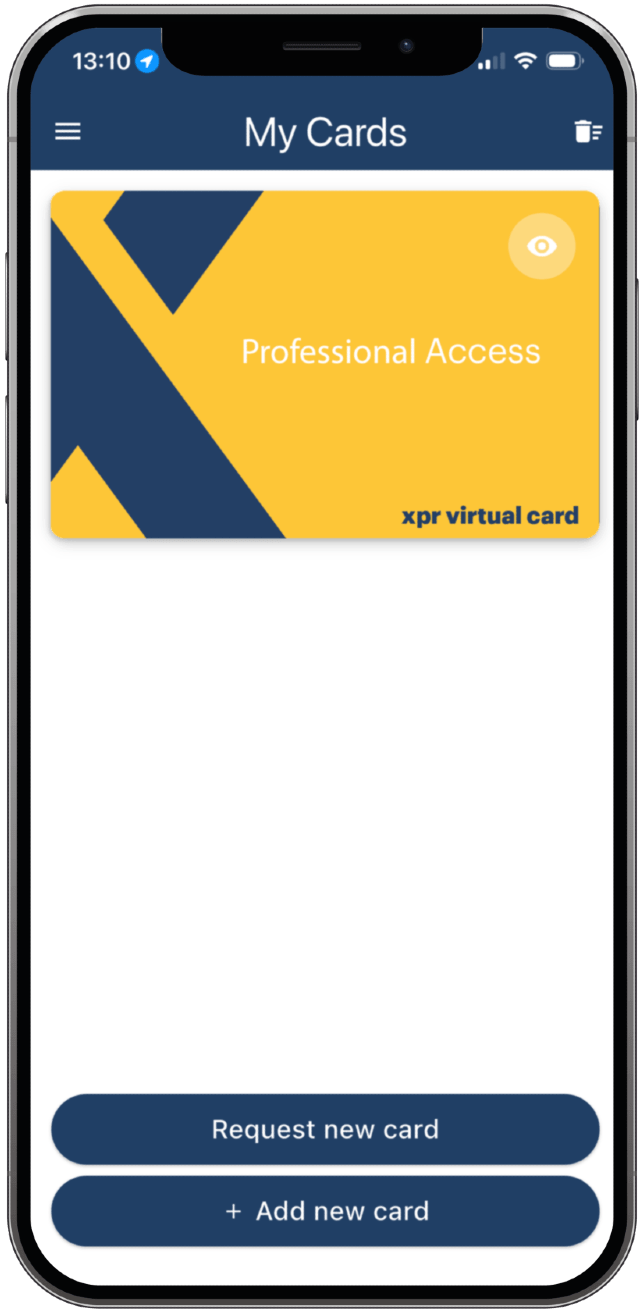
Secure credential management
In this mode, mobile credentials are created and controlled by the administrator.
Features:
· full control
· high level of security
· site code required
This mode is ideal for businesses and secure sites.
The virtual card is requested from the system administrator.
A solution fully controlled by your organization
Designed to operate without permanent cloud dependency.
The system enables mobile credentials to be managed locally within the customer’s infrastructure.
Benefits:

A secure, fully on-premise and controlled solution

Fast deployment and simplified management

Operates without an internet connection

Ideal for sensitive or industrial sites
How Professional Access mode works
Credit distribution
- XPR generates credits—unique units identified by a serial number—used to create virtual cards. Available in electronic or paper format and in flexible quantities (10, 50, 100, and more on request)
- The credits are delivered to the provider, who receives them and ensures their secure management.
- The provider redistributes the credits to the end administrator, ensuring traceability and security at every stage.

Credit activation
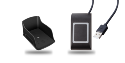
- The customer installs the XPR VC Manager software on an internet-connected PC and uses a PROX-USB-X desktop reader, along with the license number of their credit pack.
- The PROX-USB-X desktop reader is connected to the PC to enable credit loading.
- The serial number of the previously received credit pack is entered into the software to import the credits.
- The credits are activated and transferred to the desktop reader, where they are available for use. New credits are automatically added to the existing balance.

Professional Access Mode
- The user installs the XPR Virtual Card application on their smartphone, then generates and sends a virtual card request to the administrator via the channel of their choice (email, Teams, WhatsApp, etc.).
- The administrator receives the request and creates the virtual card.
- The virtual card file is sent back to the user.
- The user imports the file into the application to activate and use their virtual card.

How to configure your readers in Professional Access mode
Two reader configuration modes are available to suit different types of installations, whether for a single reader (A) or
multi-reader systems (B).
Reader configuration for “Professional Access” mode
- Define the Site Code, which will be used for all readers on the site.
- Launch the Product Manager software on the PC.
- Connect the reader to the PC.
- Enter the Site Code in the (BLE) settings.
- Start the configuration to program the reader.

Reader configuration for “Professional Access” mode using a programming card
- Define the Site Code, which will be used for all readers on the site.
- Launch the Product Manager software on the PC.
- Connect the desktop reader to the PC.
- Enter the Site Code in the (BLE) settings.
- Start the configuration to program the configuration card via the desktop reader.
- Quickly configure multiple readers using the configuration card.
